

Bulk upload
Add or update lots of records at once from Excel or Google Sheets.
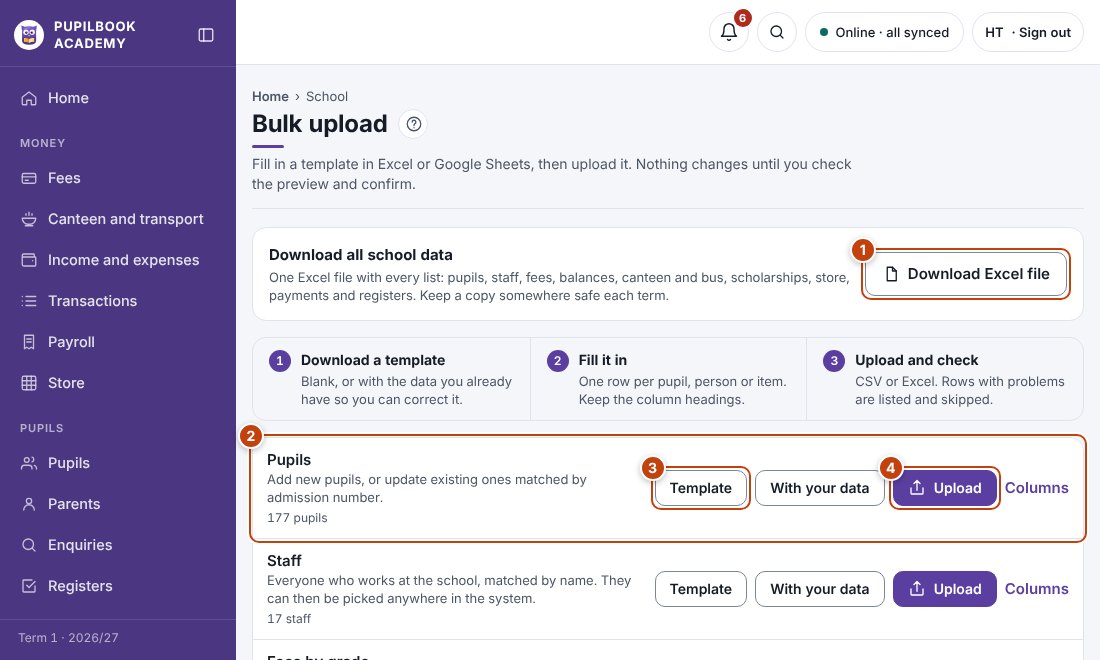
In the picture: 1 Download all school data · 2 One template for each list · 3 Download the template · 4 Upload the filled-in file.
Upload a file
Section titled “Upload a file”- Click Template for a blank one, or With your data to correct what is already there.
- Fill it in and keep the column headings. Columns explains what goes in each.
- Click Upload and choose the file, CSV or Excel.
- Check the preview. Rows with problems are listed with the reason and skipped. Click Import.
Click Undo upload straight after an upload if something looks wrong.
- For a new school, upload in this order: staff, fees by grade, pupils, then balances, canteen and transport.