

Getting around
PupilBook runs in the web browser on a phone, tablet or computer. There is nothing to install.
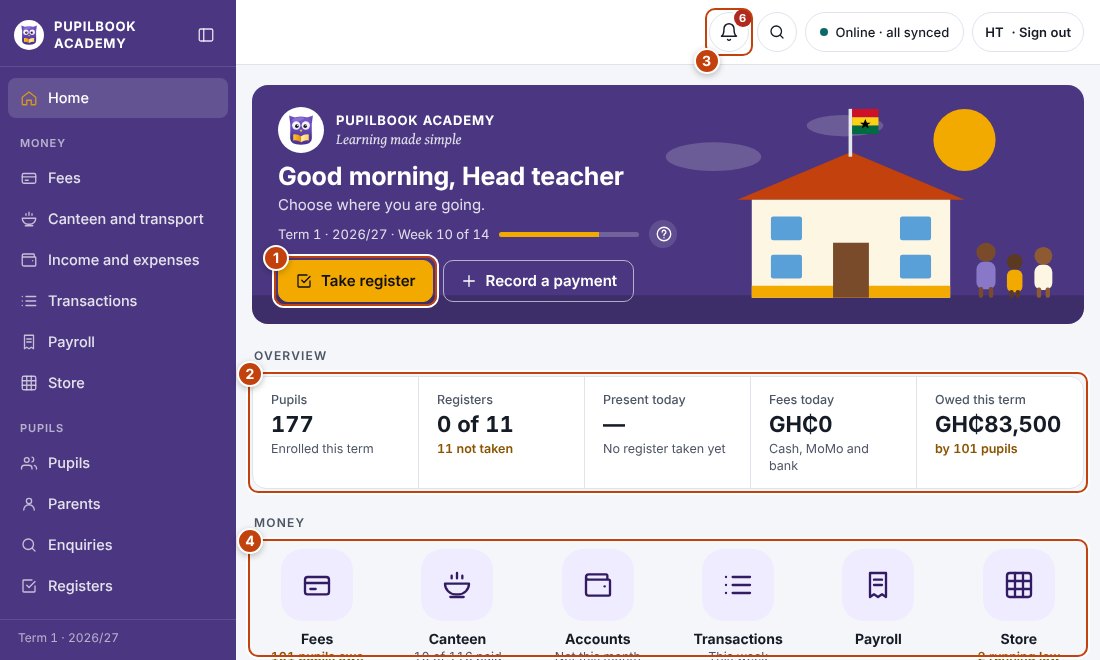
In the picture: 1 Start today’s main job · 2 Your overview: tap a figure to open it · 3 Notifications · 4 Every area as a tile.
Sign in
Section titled “Sign in”- Open app.pupilbook.com in the web browser.
- Type your email or username and your password, or tap Continue with Google if your account has your Gmail address. Your account finds your school.
- The first time, you sign in with the temporary password your head teacher, administrator or PupilBook gave you, then choose your own. The rules tick off as you type.
- If you turned on two-step sign-in, type the 6-digit code from your authenticator app. You can turn it on or off in Settings.
Find your way
Section titled “Find your way”- On a computer, the side menu lists every page you can use, in four groups: Money, Pupils, Teaching and School.
- On a phone, the pages you use most are in the bar at the bottom. Home shows every page as a tile.
- The ? button next to each page title explains that page.
No internet?
Section titled “No internet?”- Keep working. The top bar shows Offline and how many changes are waiting.
- They send by themselves when the internet is back.
- You only see the pages your role needs. This guide covers the same pages.
- The pictures show PupilBook Academy, a sample school. Your own screens look the same, in your school’s colours.