

Home
Your day at a glance: a welcome with the main job for today, your overview figures, and every part of the system as a tile.
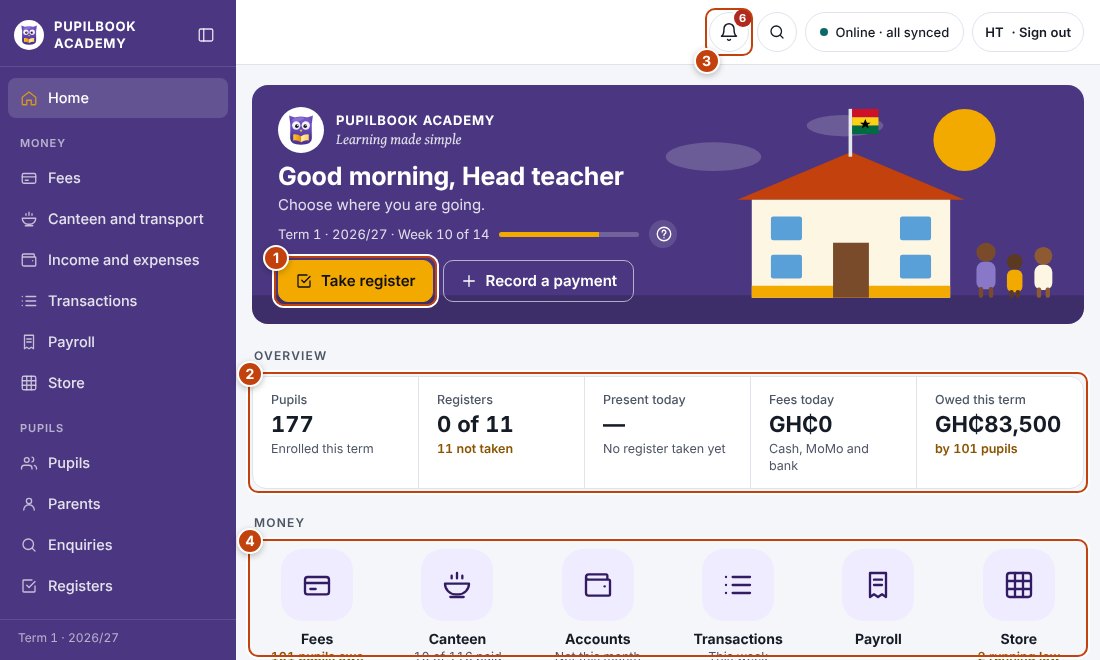
In the picture: 1 Start today’s main job · 2 Your overview: tap a figure to open it · 3 Notifications · 4 Every area as a tile.
Start the day
Section titled “Start the day”The banner at the top shows the main job, such as Take register or Record a payment. Click it to go straight there.
Read your overview
Section titled “Read your overview”- The overview bar shows the figures that matter for your role, such as registers taken, pupils present and fees in today.
- Click a figure to open the page behind it.
Check your notifications
Section titled “Check your notifications”- The bell at the top of the screen shows how many things need you.
- Click it to see what needs attention and the latest notices. Click a line to go straight to the page that sorts it out.
Open a page
Section titled “Open a page”- Click a tile to open that part of the system. Tiles are grouped Money, Pupils, Teaching and School, like the side menu.
- Pages your role cannot use are listed at the bottom as Not open to you.
- The button at the top of the side menu shrinks the menu to icons. Your choice is remembered on this device.